


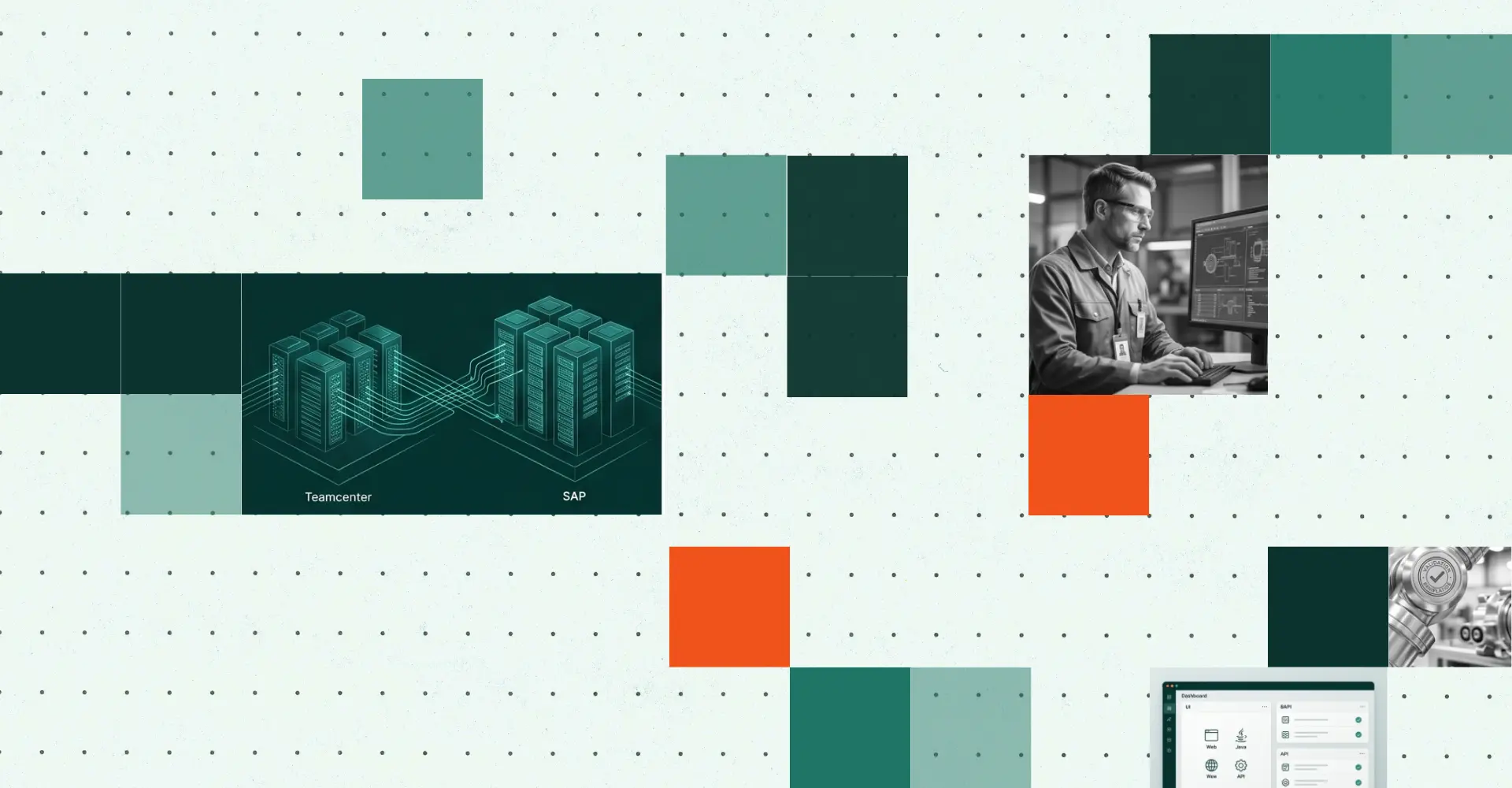
TL;DR
- What this is: Teamcenter to SAP integration testing, one script
- Who it affects: Test Automation Leads at automotive OEMs using Teamcenter and SAP
- The core problem: SAP BAPI failures invisible to UI-only regression
- Cost of not solving it: Production BOM corruption found after release
- What Sahi Pro does differently: Web Services add-on validates SAP API calls in-script
- Proof: 20-year architecture spanning web, Java, API proven at scale
Your Teamcenter regression suite passes every run, yet SAP BAPI calls are silently failing underneath, and that gap is the core challenge of SAP PLM test automation. The consequence for automotive OEM teams is severe: production BOM corruption discovered after release, not during testing, triggering recalls, line stoppages, and audit findings that trace back to integration defects no one tested. This article covers how Sahi Pro’s Web Services add-on validates SAP API responses inside the same script that drives your Teamcenter Active Workspace UI, and how to structure a Teamcenter-to-SAP integration test that catches BAPI-level failures before they reach production. Sahi Pro handles this by executing web portal actions, SAP GUI transactions, and REST/SOAP API validations in a single test sequence with one unified report.
What Is Teamcenter to SAP Integration Testing?
“Teamcenter to SAP integration testing in one script” means a single automated test sequence that validates data flow from Teamcenter PLM through to SAP ERP, covering the UI layer, the middleware transfer, and the SAP BAPI or RFC response, all without switching tools or stitching separate reports together. Teamcenter and SAP ERP exchange BOM structures, material masters, and engineering change orders through integration middleware like T4S or custom ABAP connectors. For Test Automation Lead teams, that means a PLM test automation strategy must verify not just that the Teamcenter UI rendered correctly, but that the downstream SAP transaction posted the right material number, quantity, and revision level. A test that stops at the Teamcenter UI boundary misses the exact failure mode that causes production BOM corruption. The table below shows where this matters most for Teamcenter and SAP ERP teams.
Why SAP API Failures Hidden from UI Tests Breaks Standard Automation
Standard web automation frameworks interact with the DOM. They click buttons, read text nodes, and assert element states. SAP PLM test automation requires something fundamentally different because the critical failure point, the SAP RFC/ABAP protocol layer, has no web DOM at all. When Teamcenter pushes a BOM revision to SAP through a BAPI call, the success or failure of that call is invisible to any tool that operates exclusively at the browser level. The Teamcenter UI may display a green confirmation banner while the SAP side silently rejects the material master update due to a plant assignment mismatch. DOM-based frameworks cannot detect this. They report a pass. The defect ships.
Teamcenter and SAP ERP make this harder than a typical web application because the integration architecture is deliberately decoupled. Teamcenter Active Workspace runs in a browser. SAP transactions run through SAP GUI or Fiori. The middleware layer, whether Siemens T4S, SAP PI/PO, or a custom RFC connector, operates as a background service with no user interface at all. ERP testing tools that only cover one of these layers leave the integration seams completely untested. A record-and-playback framework can capture clicks in Active Workspace, but it cannot open an SAP GUI session in the same script, and it certainly cannot fire a SOAP call to verify the middleware handoff.
The business cost in automotive OEM environments is measurable. SAP-PLM integration failures are cited as the most common cause of production BOM corruption in automotive manufacturing, with 40 to 60 percent of integration defects invisible in UI-only regression (Siemens PLM Community, 2024). A corrupted BOM that reaches the shop floor triggers wrong-part assembly, line stoppage, and potential IATF audit nonconformance. Cross platform test automation that spans the Teamcenter UI, the SAP transaction, and the API middleware is not optional in this context. It is the only way to catch defects before they become production incidents.
Why Standard Test Automation Tools Hit a Ceiling on Teamcenter and SAP ERP
Standard web automation tools are excellent at what they were designed for: browser-based testing of single-technology web applications. They handle DOM interaction, CSS selectors, and JavaScript-rendered content reliably. The ceiling appears when the test scope extends beyond the browser. SAP test automation for Teamcenter-to-SAP workflows requires coverage of SAP GUI, which is a Windows desktop application running its own proprietary scripting protocol. It also requires API-level validation of BAPI and RFC calls that occur outside any user interface. Web-layer tools were designed for web-layer testing. They were not designed to open an SAP GUI session, execute transaction MM02, and assert field values in the same script that just validated a BOM release in Teamcenter Active Workspace.
Enterprise model-based and codeless tools extend further, covering some desktop and API scenarios. But they hit their own ceiling for PLM test automation in automotive environments. Licensing models that charge per execution or per virtual user make large-scale BOM regression prohibitively expensive. On-premise deployment, which is mandatory in ITAR-controlled and IP-sensitive automotive programs, is often a premium add-on or unavailable entirely. Java thick-client coverage for Teamcenter Rich Client requires native Swing/AWT/SWT interaction that most codeless builders cannot express. The gap is a design scope problem, and Teamcenter and SAP ERP’s SAP API failures hidden from UI tests requires a tool built for this specific layer.
How to Build a Teamcenter-to-SAP Integration Test in Sahi Pro
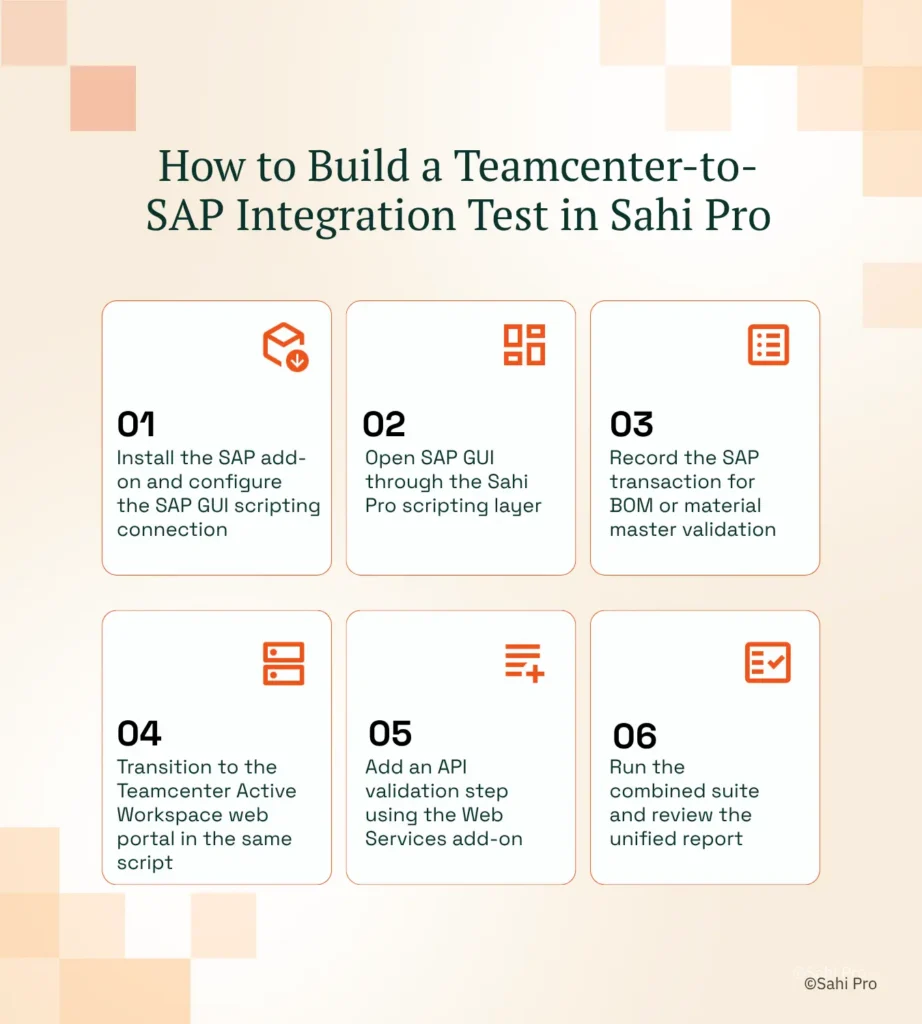
Step 1: Install the SAP add-on and configure the SAP GUI scripting connection. Enable SAP GUI scripting on the target SAP server, then point Sahi Pro’s SAP add-on to the SAP Logon instance. This is the foundation of your SAP PLM test automation setup. Confirm the connection by recording a simple transaction like SE16 and playing it back.
Step 2: Open SAP GUI through the Sahi Pro scripting layer. Launch SAP GUI from within a Sahi Pro script using the SAP add-on’s session management API. The script authenticates, opens the target client, and navigates to the relevant transaction code. This runs as part of the same script file that will later interact with Teamcenter.
Step 3: Record the SAP transaction for BOM or material master validation. Execute the SAP transaction, for example MM03 to display material master data, and capture field assertions. Sahi Pro identifies SAP GUI elements by their field labels and screen positions, not by internal SAP control IDs. This makes PLM test automation scripts stable across SAP support pack upgrades.
Step 4: Transition to the Teamcenter Active Workspace web portal in the same script. Without closing the SAP GUI session, the script opens a browser instance targeting Teamcenter Active Workspace. Sahi Pro’s web engine handles the AJAX-heavy Active Workspace interface, identifying BOM tree nodes by visible part numbers and labels rather than DOM indices.
Step 5: Add an API validation step using the Web Services add-on. Insert a REST or SOAP call to the integration middleware to verify the data payload that Teamcenter sent to SAP. The Web Services add-on executes this call inline, compares the response against expected values, and logs the result in the same report as the UI assertions.
Step 6: Run the combined suite and review the unified report. Execute the full script: SAP GUI transaction, Teamcenter web UI interaction, and API validation, all in one run. The report shows pass/fail status for every layer in a single HTML or PDF document. The most common break point teams expect, the handoff between SAP GUI and the web browser, is handled internally by Sahi Pro’s multi-layer execution engine, and that is precisely why Sahi Pro’s approach prevents it.
How Sahi Pro Handles SAP API Failures Hidden from UI Tests
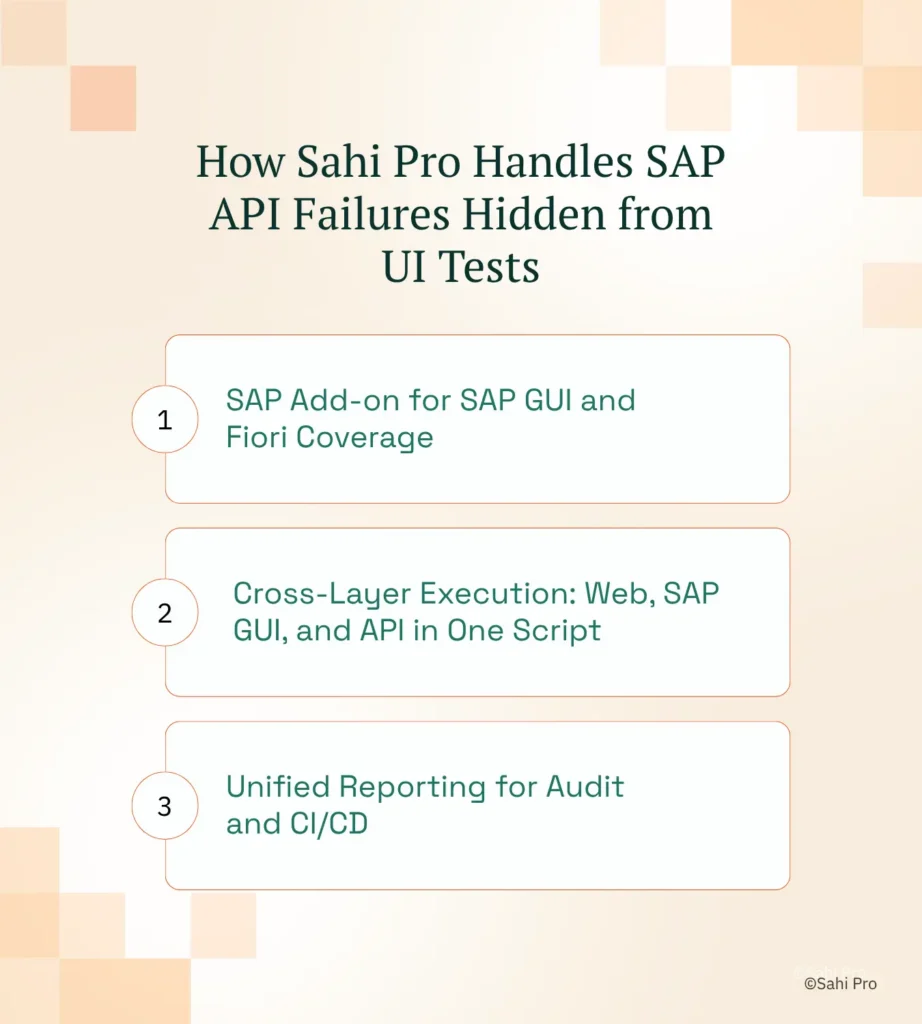
SAP Add-on for SAP GUI and Fiori Coverage
Sahi Pro’s SAP add-on connects directly to the SAP GUI scripting API, giving scripts access to every screen, field, and table control in an SAP transaction. Consider a concrete scenario: your test releases an engineering change order in Teamcenter Active Workspace, then needs to verify that SAP transaction CS02 reflects the updated BOM structure. The script navigates to CS02, reads the component list by field labels, and asserts that the new revision’s part numbers match. When SAP applies a support pack that rearranges screen elements, the label-based identification still resolves correctly. No locator rewrite. This is where SAP test automation diverges from generic approaches, because the identification method mirrors how a human reads the screen, not how the DOM is structured.
Cross-Layer Execution: Web, SAP GUI, and API in One Script
The real value of SAP PLM test automation appears when a single script spans all three layers. Sahi Pro’s web engine handles Teamcenter Active Workspace. The SAP add-on handles SAP GUI and Fiori. The Web Services add-on handles REST and SOAP calls to integration middleware. In practice, a test might start by creating a BOM revision in Active Workspace, switch to SAP GUI to run MM03, then fire a SOAP call to the T4S middleware to verify the payload. ERP testing tools that require separate scripts for each layer force teams to correlate results manually. Sahi Pro produces one execution log covering all three layers, with timestamps that trace the exact sequence of events.
Unified Reporting for Audit and CI/CD
Cross platform test automation generates value only if the results are consumable. Sahi Pro outputs structured reports in HTML, PDF, Excel, and XML. Each report entry includes a timestamp, the action performed, the expected value, the actual value, and a pass/fail status. For CI/CD pipelines, the XML output integrates with Jenkins, GitLab CI, and Azure DevOps. For audit purposes, the same report serves as a traceable execution record that maps test steps to requirements.
Sahi Pro vs Generic Test Automation Tools for Teamcenter to SAP Integration Testing
Standard web automation tools are the right choice for teams whose test scope is limited to browser-based applications with stable DOM structures. For those teams, the tooling works well and the investment is justified. The comparison shifts when the scope includes SAP API failures hidden from UI tests, Java thick-client interaction, or on-premise deployment constraints, all of which are common in automotive SAP PLM test automation environments. Teams evaluating Teamcenter to SAP integration testing tools need to assess whether their scope stays within the browser or extends across SAP GUI, middleware APIs, and desktop clients. The table below compares eight criteria that matter most for Teamcenter and SAP ERP testing teams evaluating ERP testing tools.
Teamcenter and SAP ERP Test Automation: Feature Comparison
| Criterion | Generic tools | Sahi Pro |
| Cross-layer: web + Java + API in one script | Separate tools for web, desktop, and API; integration handoffs are never tested together | Single script spans web portal, Java thick client, and REST/SOAP API; one report |
| SAP GUI coverage alongside PLM | Separate tool required for SAP GUI scripting; no single tool covers SAP and PLM | SAP add-on covers SAP GUI and Fiori in same script as Teamcenter; one suite |
| Java thick-client coverage | No DOM access to Java Swing/AWT/SWT panels; test fails when PLM Java module opens | Desktop add-on reaches Java Swing/AWT/SWT in same script as web portal; no tool switching |
| On-premise deployment | Most tools route execution data externally; blocked in ITAR and IP-sensitive environments | Full on-premise install; execution, results, and reporting stay within customer network |
| Maintenance after PLM upgrades | DOM-based scripts need partial or full rewrite after each major PLM release | Proximity ID survives structural UI changes; upgrade maintenance near zero |
| On-premise CI/CD integration | On-premise PLM nodes need custom agent config; most tools assume cloud execution | Execution server integrates with Jenkins, GitLab CI, and Azure DevOps on-premise |
| Compliance evidence output | Screenshot logs not accepted by FDA, AS9100D, or IATF auditors as structured evidence | Timestamped structured execution records accepted by FDA, AS9100D, and IATF auditors |
| BOM tree stability across upgrades | Row-index selectors break when BOM hierarchy changes; manual rewrite required | Proximity ID reads by visible part number; survives hierarchy changes without rewrite |
If your team only needs web-layer Teamcenter and SAP ERP testing with no SAP API failure detection requirement, a standard web automation tool may cover your scope.
Automotive QA: IATF 16949 for SAP-PLM Validation
IATF 16949:2016 clause 7.5 governs documented information and requires that any software influencing product quality decisions be validated with traceable, timestamped records. SAP-PLM integration scripts that determine BOM state in production fall squarely under this requirement (IATF, 2016). For automotive OEM teams, this means the test automation output itself becomes an auditable artifact. Cross platform test automation that spans Teamcenter and SAP must produce execution records that an IATF auditor can trace from test step to requirement to production release decision.
Sahi Pro addresses this by generating structured execution reports in HTML, PDF, and XML formats. Each report entry contains a timestamp, the test action, the expected result, the actual result, and a pass/fail determination. For IATF auditors, this maps directly to clause 7.5’s demand for controlled documented information. The reports are generated and stored entirely on-premise, satisfying data residency requirements for ITAR-controlled programs. No execution data leaves the customer network.
Engineering IT Managers evaluating tools for IATF 16949 compliance need to confirm two things: that the report format meets their quality management system’s documentation standard, and that the deployment architecture keeps all test data within the corporate network boundary. Sahi Pro’s on-premise installation model satisfies both without requiring a separate infrastructure procurement.
Real Results: Integro Technologies (Aurionpro)
Integro Technologies, part of the Aurionpro group, operates in financial services with complex multi-module applications requiring extensive regression coverage across cash management and loan origination systems. They faced the same class of problem automotive OEM teams encounter: API-level failures hidden beneath passing UI tests, with regression suites too slow and too fragile to run reliably. They moved to Sahi Pro to consolidate their test execution into a single tool that could validate web UI and backend API responses in the same script, aligning with the Web Services add-on’s ability to validate API calls inline. The results after implementation:
- 90% savings on man hours of regression testing for cash management and loan origination systems.
- Team needed to spend only 10% of total time on result and fail case verification after automation.
- Thousands of test cases automated for a specific banking product with full regression confidence for stakeholders.
- All QA team members trained across both manual and automation domains, eliminating a separate automation-only headcount.
What Test Automation Leads at Automotive OEMs Do Differently
The three things that matter most: your Teamcenter-to-SAP integration test must cover the API layer, not just the UI. Your test scripts must survive PLM and SAP upgrades without a full rewrite cycle. Your execution reports must satisfy IATF 16949 clause 7.5 without manual post-processing. Teams that solve these three problems stop being the release bottleneck and start catching BOM corruption before it reaches the shop floor.
Sahi Pro offers a free trial, and you can test it against your own Teamcenter and SAP ERP environment before any license decision. If you want to see how a cross-layer script handles your specific integration scenario, book a technical demo and bring your hardest test case.